

Claude Code Step-by-Step Tutorial for Beginners
Anthropic’s Claude Code is a powerful AI-driven command-line tool that helps you generate code, debug projects, build websites, and create applications using simple natural language prompts.
Unlike traditional coding, Claude Code allows you to describe what you want — and the AI writes the code for you.
Think of it as prompt-based coding directly inside your terminal.
Why Use Claude Code?
-
✅ No advanced programming knowledge required
-
✅ Generate complete projects from scratch
-
✅ Debug and refactor existing code
-
✅ Works directly in terminal (CLI-based)
-
✅ Integrates with Git & GitHub
-
✅ Supports planning, asking, and coding modes
Even beginners can build impressive applications within minutes.
Step 1: Claude Code Requirements
Before installing Claude Code, you need:
-
A Claude subscription (Pro, Max, Teams, Enterprise), or
-
An API key with credits
Start with a basic plan to test the tool before scaling.
Step 2: How to Install Claude Code
Claude Code runs inside your terminal, not as a desktop app.
For Windows:
-
Open PowerShell
-
Run the installation command from Claude’s official documentation
For Mac/Linux:
-
Open Terminal
-
Run the curl installation command
After installation, test it by typing:
claude
You will:
-
Authenticate your Claude account
-
Trust your working folder
-
Enter the Claude Code interface
Also Read: How to Make an Animated Cartoon Video Using AI Tools (Step-by-Step Guide for Beginners) with Examples
Claude Code Interface Example
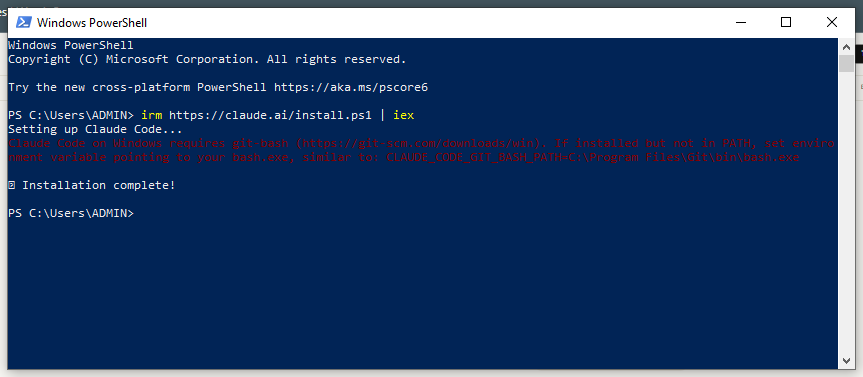
Claude Code runs directly inside your shell environment.
Step 3: Install Git (Highly Recommended)
To protect your projects and track changes, install Git.
Git allows you to:
-
Save checkpoints
-
Revert mistakes
-
Track code history
-
Push projects to GitHub
You can even ask Claude:
Install Git for me
If permission errors appear, run PowerShell as Administrator.
Step 4: Connect GitHub to Claude Code
Create a free account on:
GitHub
Then run:
gh login
Follow the authentication steps to connect your terminal to GitHub.
Why this matters:
-
Your code gets saved remotely
-
You can access it from any device
-
You avoid losing projects
Step 5: Use Claude Code Inside a Code Editor
Although Claude Code works in terminal, most developers prefer using it inside an editor like:
-
Visual Studio Code
-
Cursor
How to Work Properly:
-
Open your editor
-
Create a new project folder
-
Open terminal inside the editor
-
Type:
claude
This lets you:
-
See files created in real-time
-
Track changes visually
-
Edit code easily
Example Project: Build a Web-Based Tic-Tac-Toe Game
Let’s test Claude Code with a simple prompt:
Make a tic tac toe game that I can play on the web
Claude:
-
Generates HTML
-
Creates game logic
-
Builds UI
-
Saves the file
Then simply open the generated .html file in your browser.
Generated Web Game Example

Claude automatically:
-
Creates project files
-
Adds necessary folders
-
Structures code properly
Understanding Claude Code Modes
Claude Code has three main modes:
1️⃣ Ask Mode (Default)
-
Asks for confirmation before changes
2️⃣ Code Mode
-
Automatically accepts edits
-
Faster execution
3️⃣ Plan Mode
-
Creates structured project plans
-
Best for complex builds
Switch modes using:
Shift + Tab
Essential Claude Code Shortcuts
| Shortcut | Function |
|---|---|
/help |
Show available commands |
/commands |
List all commands |
Shift + Tab |
Change mode |
Esc Esc |
Clear input |
Up Arrow |
View previous command |
Alt + Enter |
Add line break in prompt |
! |
Bash mode |
@ |
Reference files |
Ctrl + O |
Expand tool usage details |
Advanced Example: Planning a 2D Shooter Game
Instead of coding immediately, use Plan Mode:
I want to create a top-down 2D shooter game in the browser.
Character moves with arrow keys.
Mouse to aim and shoot.
Enemies spawn from multiple directions.
Add levels and menu screen.
Create a plan for this game.
Claude will:
-
Break the project into steps
-
Suggest technologies
-
Define structure
-
Prepare roadmap
This structured AI planning dramatically improves results.
Best Practices for Using Claude Code
✔ Be very specific
✔ Work in small steps
✔ Use planning mode first
✔ Install Git before starting
✔ Connect to GitHub
✔ Use inside a code editor
✔ Review generated code
If you let AI steer without direction, results may become messy.
Clear instructions = professional output.
Is Claude Code Beginner Friendly?
Yes, but with structure.
If terminal feels intimidating, you can use Claude Desktop App’s coding mode instead. However, for serious development, CLI is more powerful.
Final Thoughts
Claude Code is redefining how software is built.
With just prompts, you can:
-
Build websites
-
Create games
-
Generate apps
-
Automate tasks
-
Debug entire projects
AI-assisted coding is not the future — it’s the present.
If you’re serious about becoming an AI-powered developer in 2026, mastering Claude Code is a massive advantage.

One thought on “Claude Code Step-by-Step Tutorial for Beginners: Complete Setup, Features & Real Project Guide”