

Animated cartoon videos are funny, educational, and highly engaging, especially for kids. Today, many creators are using AI-powered tools to create professional animated videos that generate millions of views on YouTube and Social Media.
The best part? You don’t need animation skills or expensive software.
Let’s walk through the complete step-by-step process to create such videos using AI tools.
Step 1: Create the Story Script Using AI Content Writer
Every animated video starts with a compelling script.
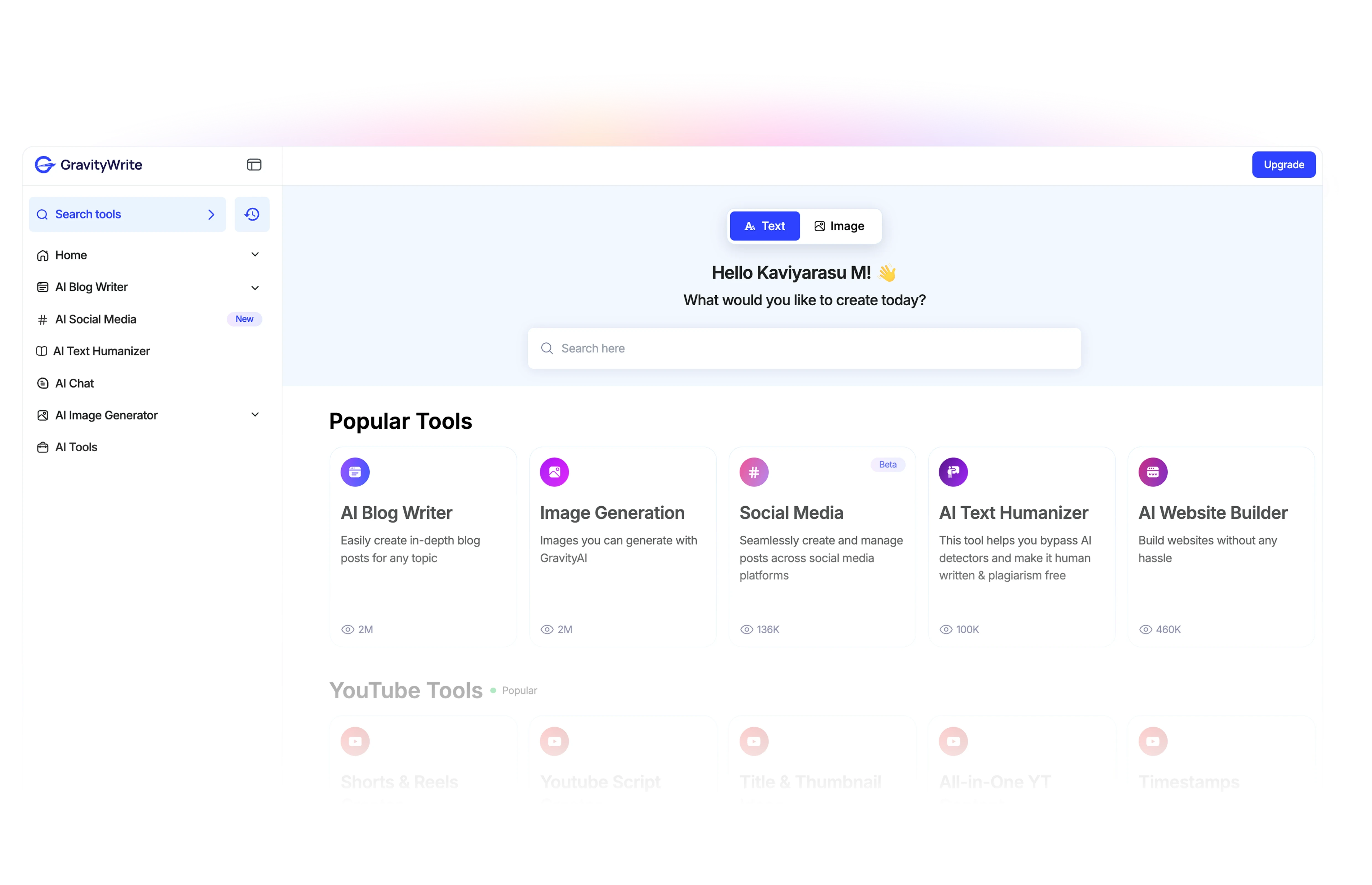
You can generate scripts easily using ChatGPT, Google Gemini, GravityWrite, an AI writing assistant designed to create structured content for blogs, marketing, and kids’ stories.
How to Generate a Script:
-
Enter your story topic
-
Select theme
-
Choose age group
-
Add number of characters
-
Set story length
-
Click “Create Content”
Step 2: Generate AI Voiceovers Tools for Your Characters
Now it’s time to bring your characters to life with voiceovers.
Use Google AI Studio, ElevenLabs, a popular AI voice generation tool.
Steps:
-
Sign up for free
-
Choose a voice for each character
-
Paste dialogue
-
Click Generate
-
Download the audio file
💡 Pro Tip: Name files clearly (Example: Bunny_01.mp3) to keep editing organised.
Step 3: Create Animated Cartoon Characters
Now convert static images into talking cartoon characters.
You can use Adobe Express to animate characters.
Process:
-
Select a character image
-
Set the background to green (for easy removal later)
-
Upload voiceover
-
Enable audio enhancement
-
Generate animation
-
Download video
Repeat this process for all dialogues.
Bonus Trick: Create Listening Animations
To make conversations look natural:
-
Upload a silent audio file
-
Disable speech enhancement
-
Generate animation
This makes the character blink and move slightly without speaking.
Step 4: Create Animated Backgrounds
To design engaging backgrounds, use Canva.
Steps:
-
Open a new video project
-
Set duration
-
Search for background elements
-
Add animated trees, clouds, and birds
-
Apply animation effects
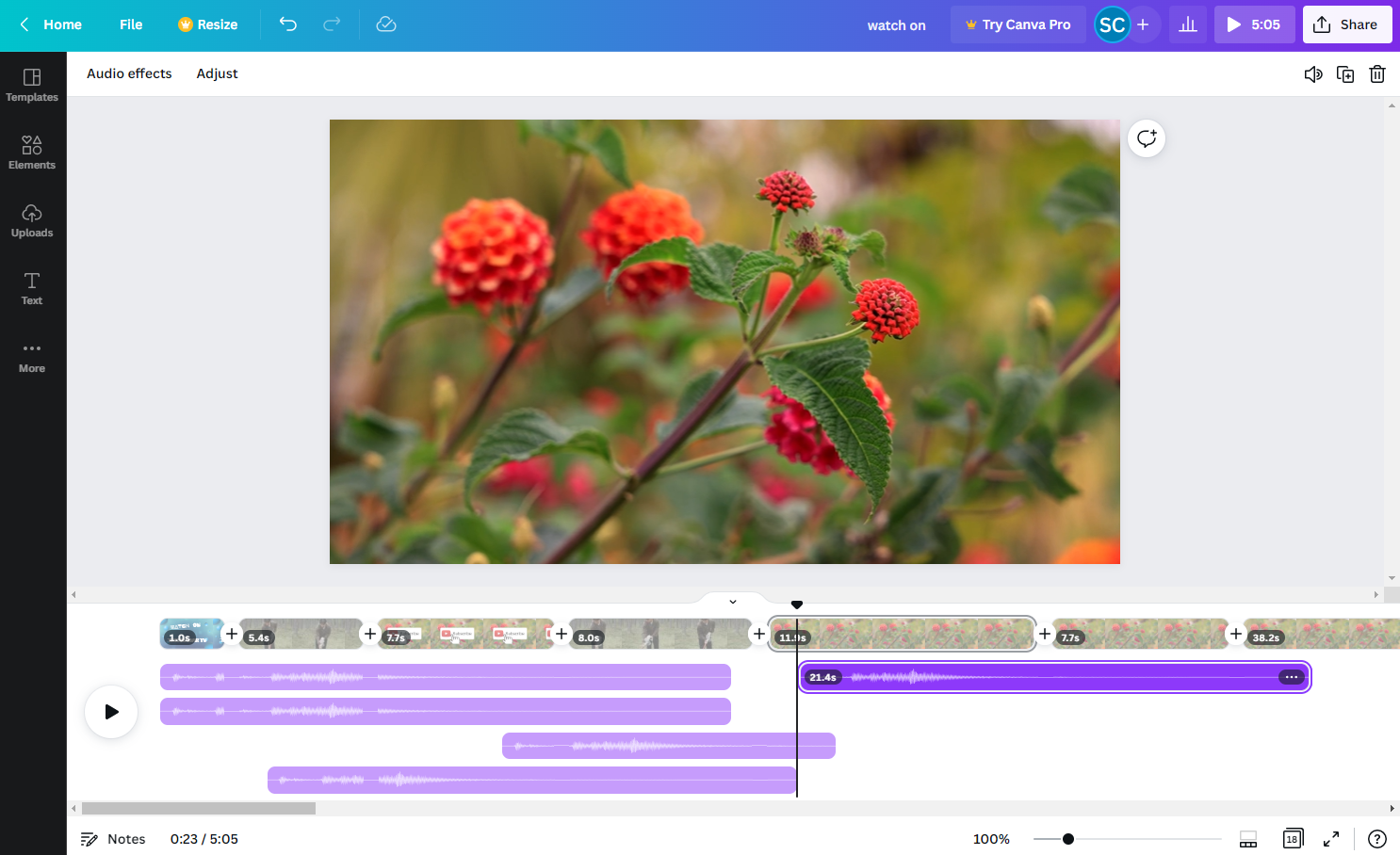
Download each background separately for easier editing.
Step 5: Combine Everything in Video Editor
Now assemble your animated video.
You can use:
-
CapCut
-
Clipchamp
Editing Steps:
-
Create new project
-
Upload backgrounds and characters
-
Drag background to timeline
-
Add character video above it
-
Remove green screen using chroma key
-
Adjust positioning
Add Sound Effects
To make your cartoon more engaging:
-
Go to the Audio section
-
Search sound effects (birds, laughter, etc.)
-
Drag to timeline
-
Adjust volume
Add Transitions Between Scenes
Transitions make scene changes smooth.
-
Click Transitions
-
Drag between clips
-
Adjust duration
Add Auto Subtitles
Subtitles increase engagement and retention.
In CapCut:
-
Go to Captions
-
Select Auto Captions
-
Click Generate
-
Customize font and style
Step 6: Export the Final Video
Once everything is complete:
-
Click Export
-
Select highest resolution (1080p or 4K)
-
Choose high quality
-
Download final video
Your animated cartoon video is now ready for YouTube or social media.
Showcase Your Cartoon Brand Online
To create a website for your videos, you can use WebSpaceKit, which provides:
-
Free domain
-
Free SSL
-
Customizable templates
-
No coding required
Final Thoughts
Creating animated cartoon videos using AI is now easier than ever.
You don’t need:
-
Animation experience
-
Drawing skills
-
Expensive software
With the right AI tools, you can:
-
Start a kids YouTube channel
-
Build a cartoon brand
-
Monetize entertaining content
-
Create educational videos
Start with one short video. Improve consistently. Scale gradually.
